![Dispenza-Revised-BlackLogo-041123-1.png]](https://faq.dispenza.com/hs-fs/hubfs/Dispenza-Revised-BlackLogo-041123-1.png?height=40&name=Dispenza-Revised-BlackLogo-041123-1.png)
Dispenza uses 1Password to securely share and manage company passwords, ensuring that all team members have safe access to necessary credentials to perform their jobs and not have access to anything else.
FIND YOUR 1PASSWORD ACTIVATION EMAIL IN YOUR INBOX
You should have received an email from 1Password called "Activate your 1Password account. activate your account.

If you don't see it, check your spam folder.
If it's still not there, contact your Account Executive.
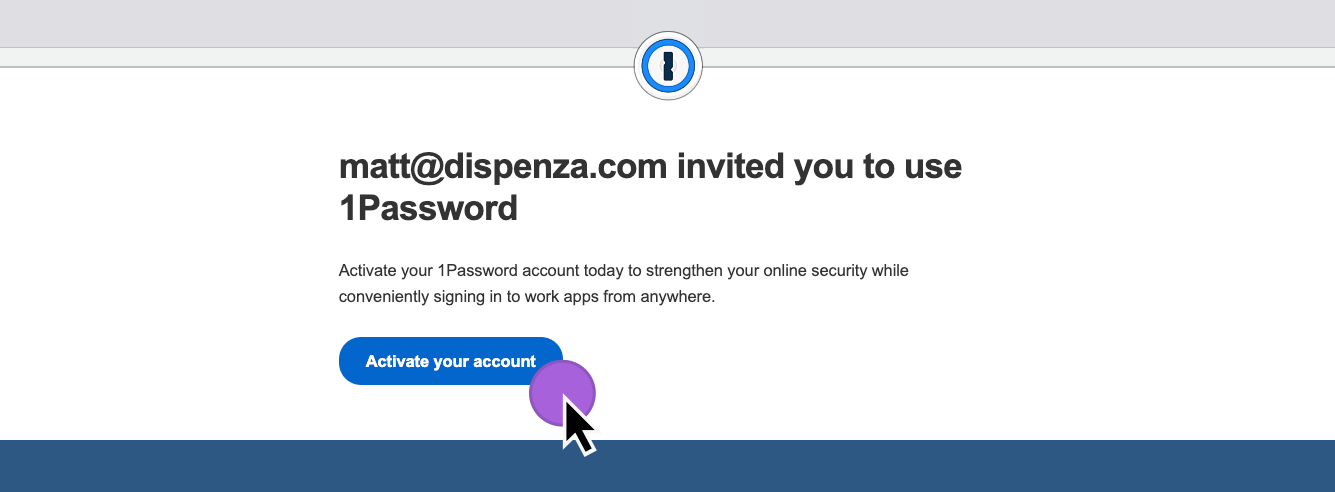
CLICK THE ACTIVATE YOUR ACCOUNT BUTTON
After opening the email, Click the "Activate your account" Button
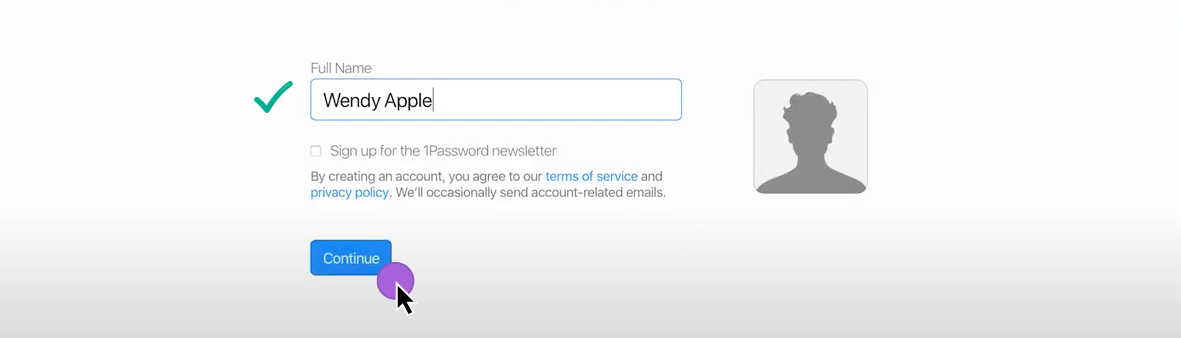
TYPE IN YOUR FULL NAME
Type in your name and Click Continue
CREATE YOUR MASTER PASSWORD
In the blue box, create your master password.
IMPORTANT: THIS IS YOUR PASSWORD TO LOGIN AND WILL NEED TO BE REMEMBERED BY YOU. CREATE SOMETHING YOU WILL REMEMBER.
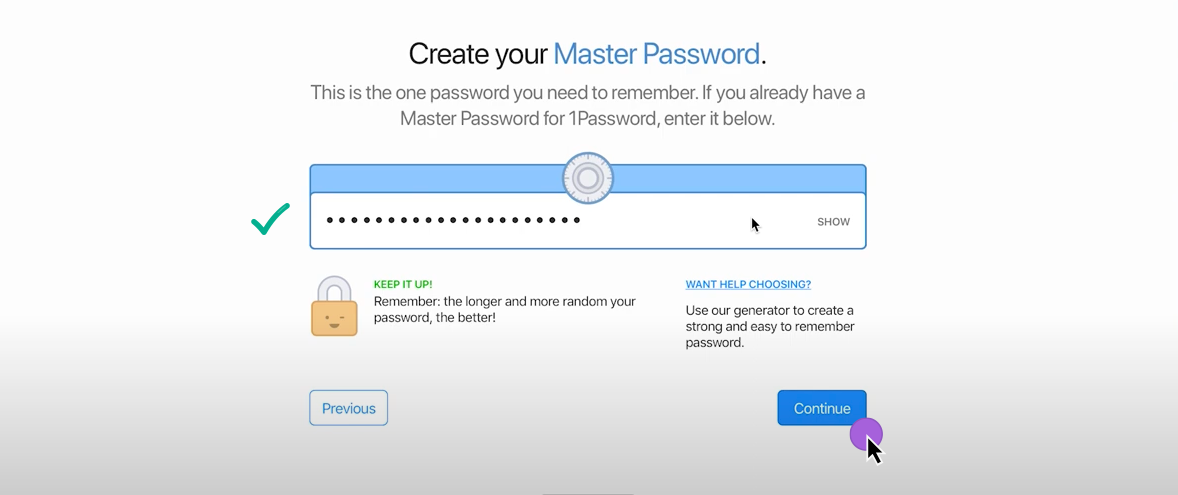
Once you have added a master password that YOU will remember, click continue.
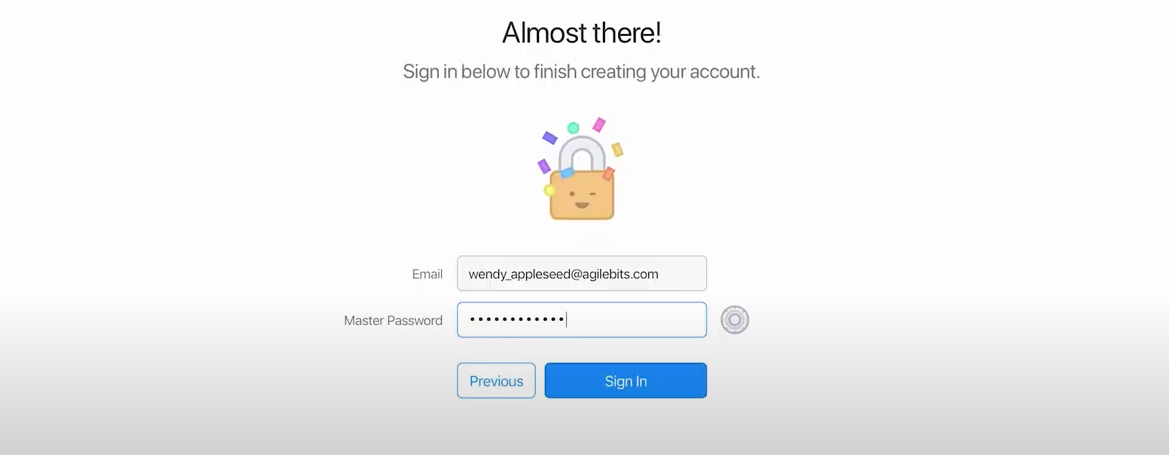
SIGN IN
Enter your Email and Master Password to sign in.
DOWNLOAD YOUR SECRET KEY
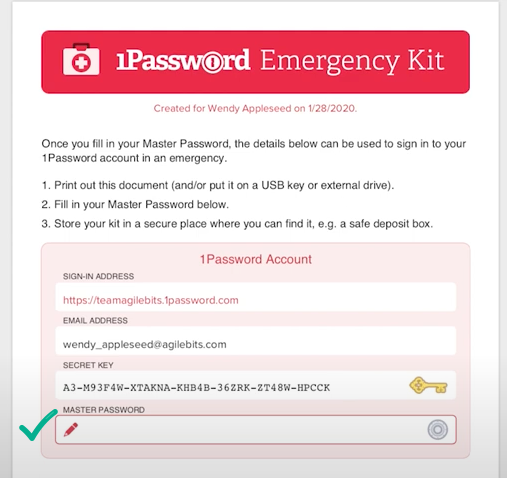
Your secret key will be used if you want to use the 1Password browser apps or use the app on your phone. This can also be used if/when you forget your master password and need to recover your account.
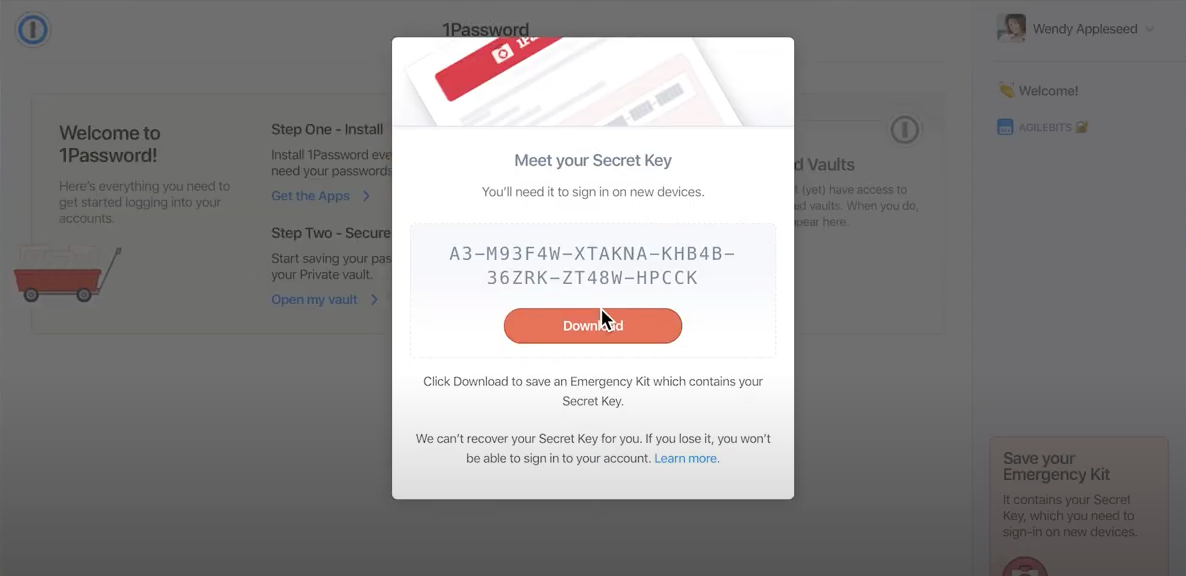
Protip: If you print it out, write your master password on the paper so you have it handy if you can't remember it.
WAIT FOR YOUR ACCOUNT TO BE CONFIRMED
Congratulations! You are done with this step. Let your Account Executive know that you're account is set up and they will guide you through the next step once your account is confirmed.